 Quintipor
 macOS
Quintipor Focus Time
Plan your day in time blocks. A floating window on your Mac shows the task at hand, how much time is left and what comes next.
Plan the week, then zoom in on today
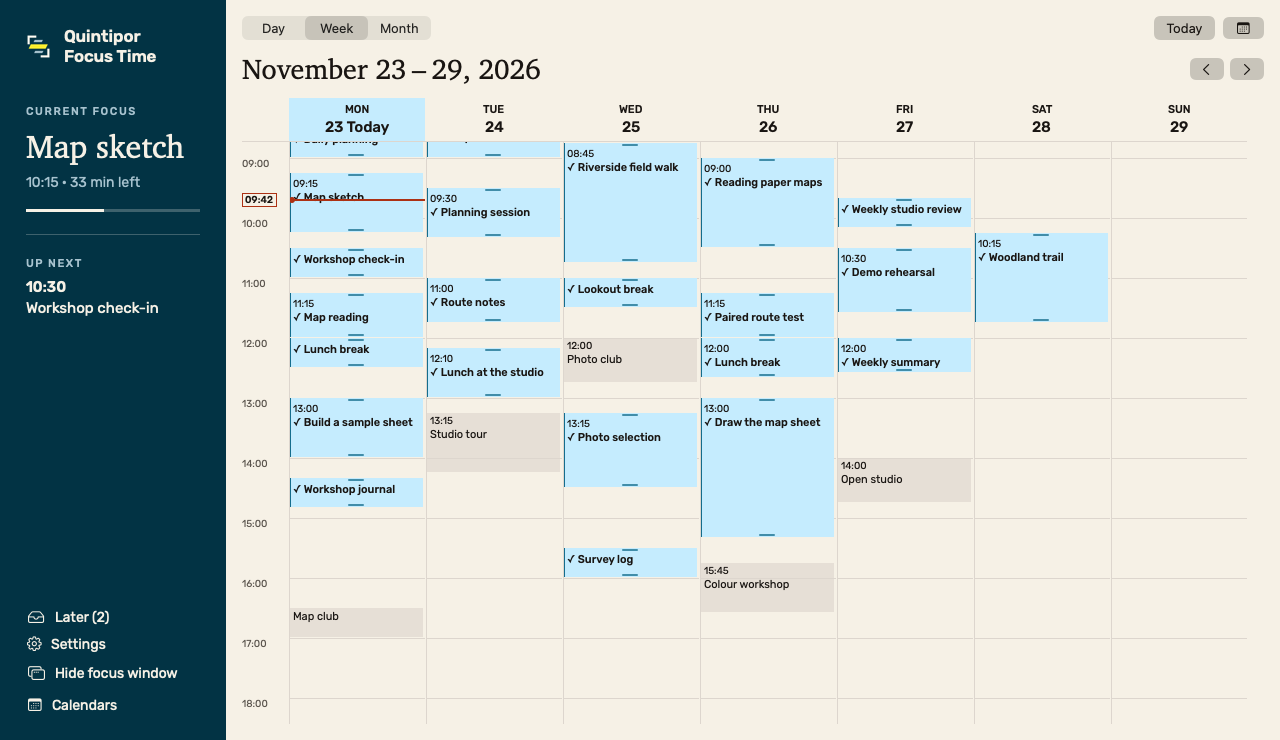
Drag across an open part of the weekly grid. The new block already has a start and end time. Move your own block to another day, or drag its upper or lower edge to adjust its length.
In this example, Wednesday has a two-hour field walk, while Friday wraps up with a short report. The line marks the current time.
Choose which events count as focus time
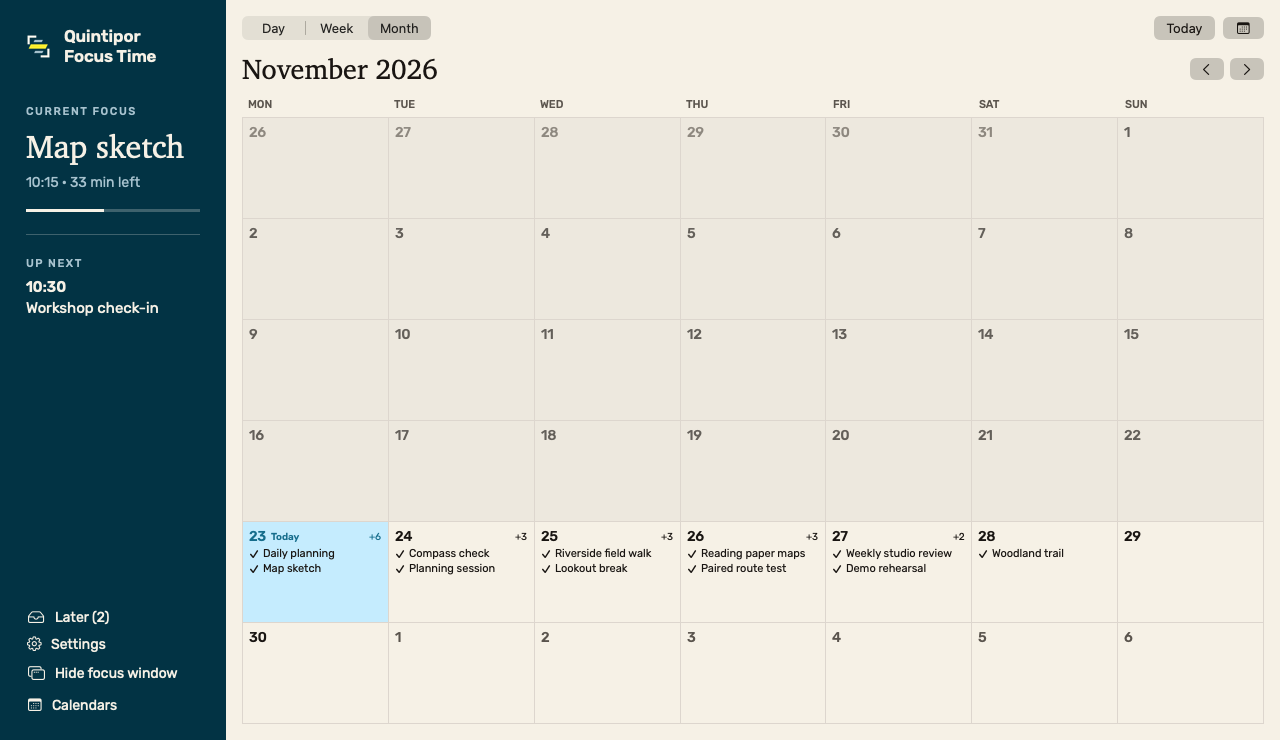
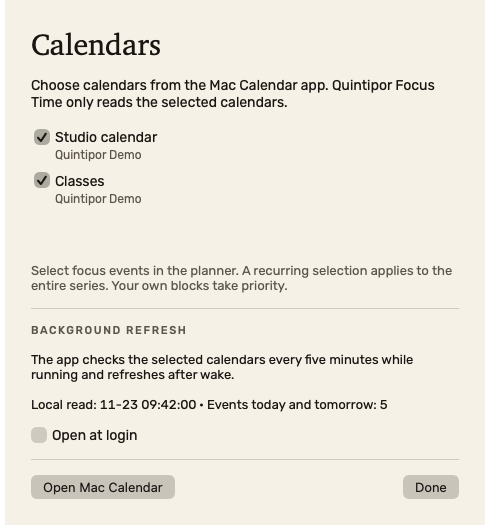
Choose from the calendars available in the Mac Calendar app. Their events appear in your schedule. Mark an event when you want the floating window to treat it as focus time.
You can mark a recurring meeting as a series and skip just one occurrence. The original calendar event stays in place.
Keep the current task visible as you switch apps
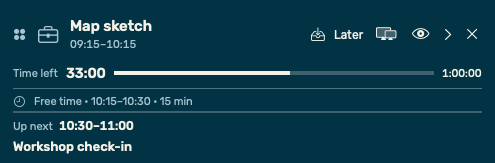
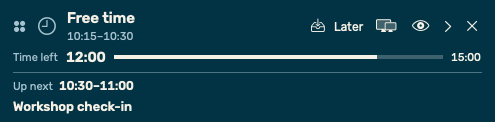
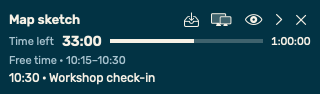
The standard window shows your task, a countdown and a progress bar. If there is a gap before the next focus block, it gets its own row. When the current task ends, the countdown switches to the break.
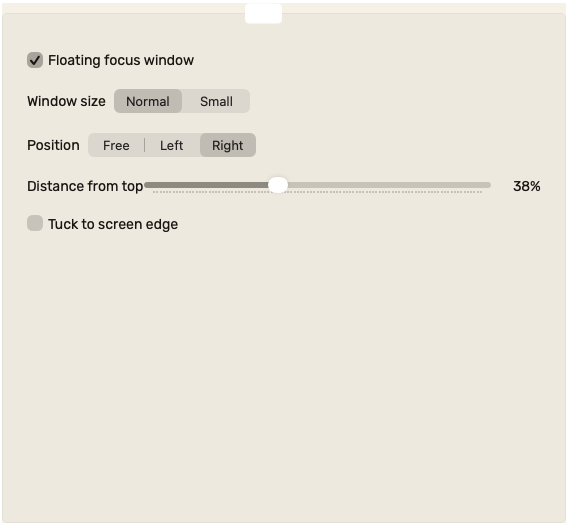
Choose a compact window, move it to another monitor or place it at the edge of the screen. Click the arrow to tuck it away. A focus change brings it back, and the app remembers its position.
Save the thought and carry on with your task
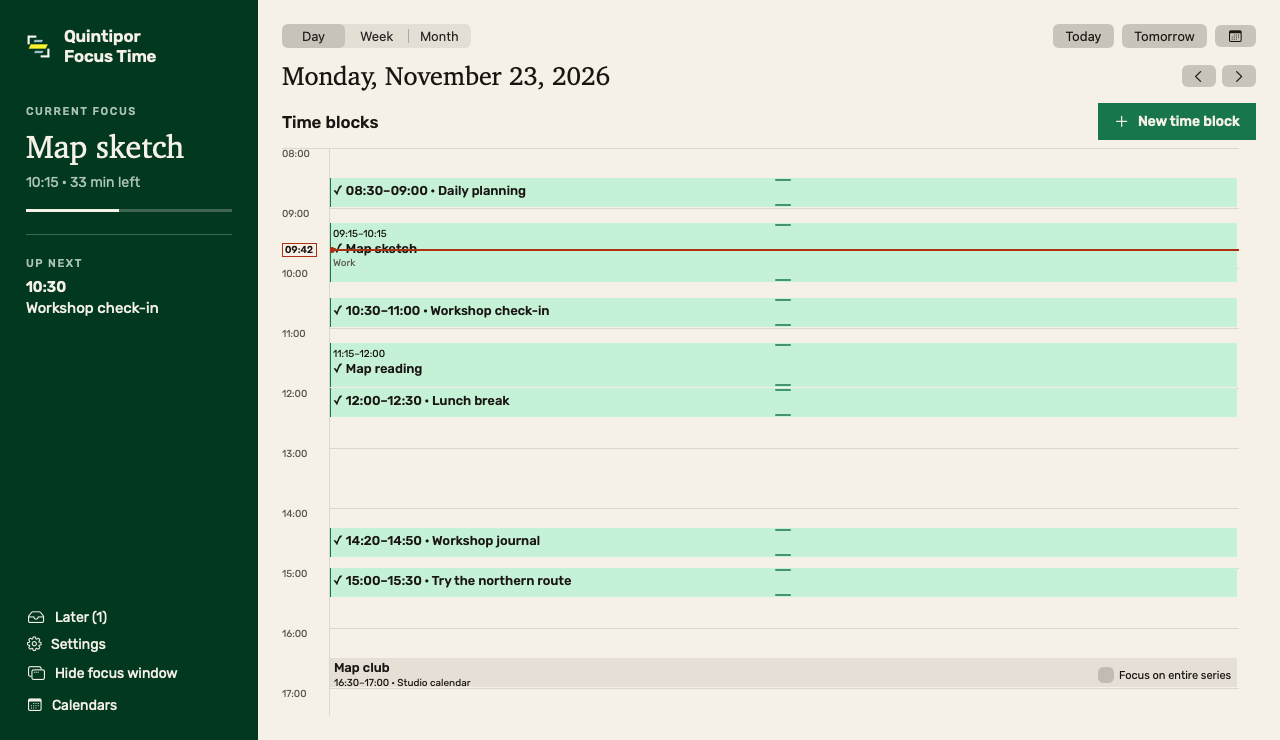
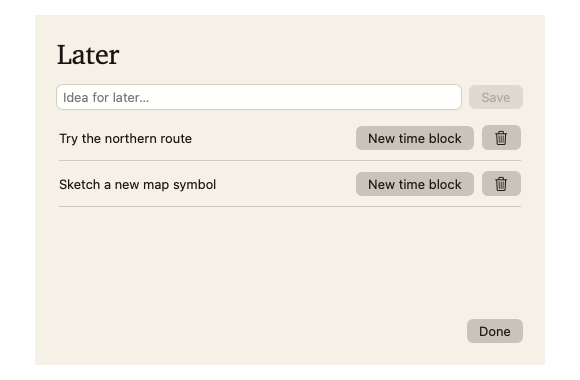
Use Later in the floating window, or press ⌃⌥⌘L to capture a thought. When you give it time later, the idea is already filled in as the block title.
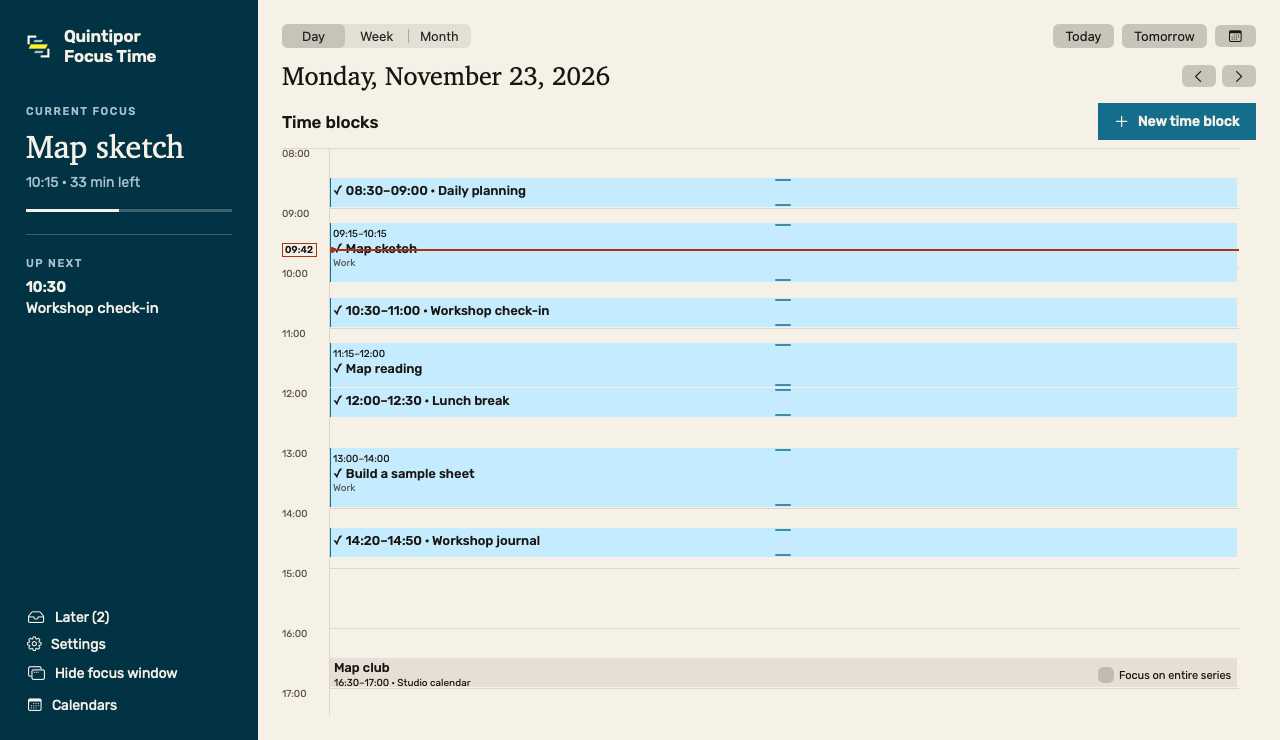
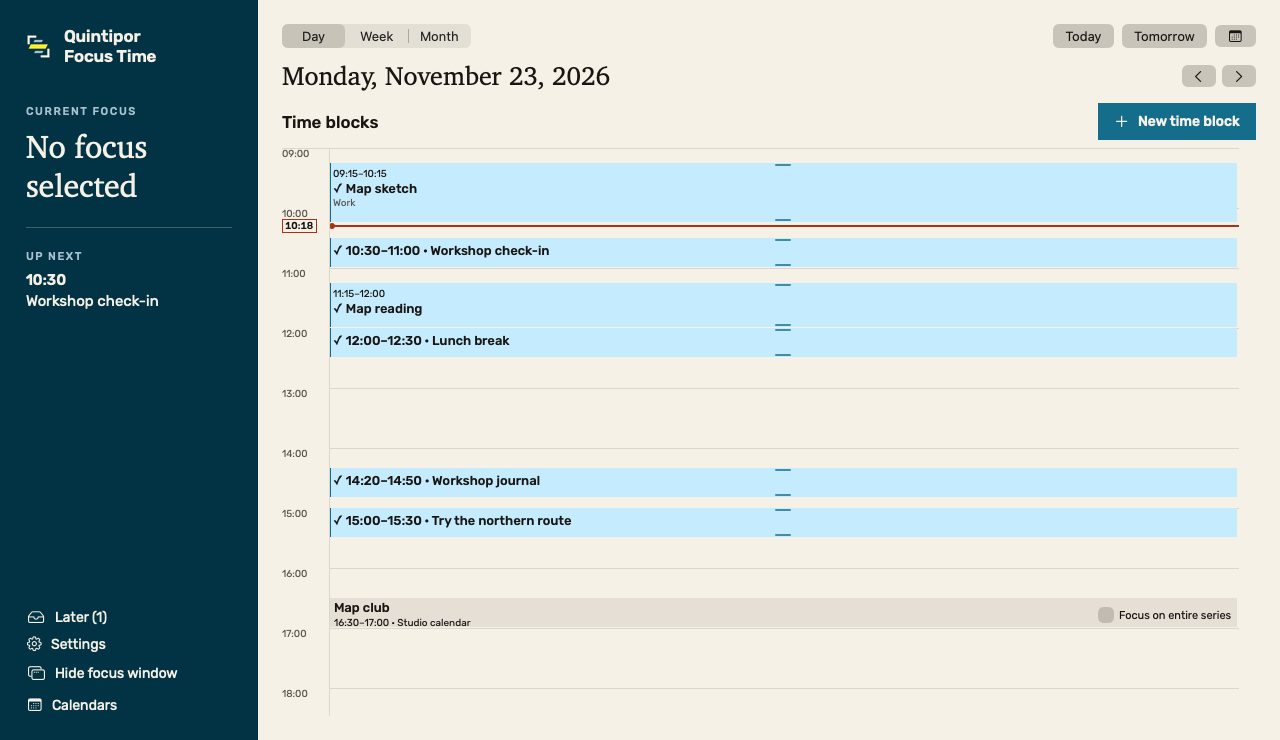
Here, trying the northern route starts as a note. It later gets a half-hour slot in Monday’s plan.
Give recurring work its own rhythm
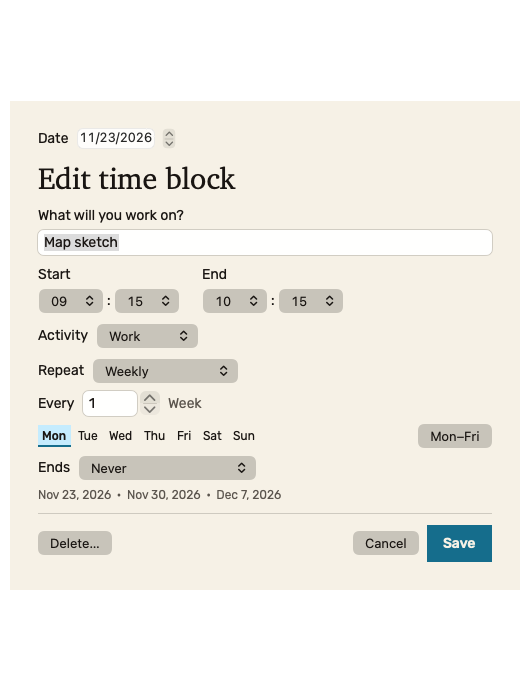
Choose the hour and minute separately in five-minute steps. Set how often a block repeats, which days it runs and when the series ends. Skip one occurrence when a week breaks the pattern.
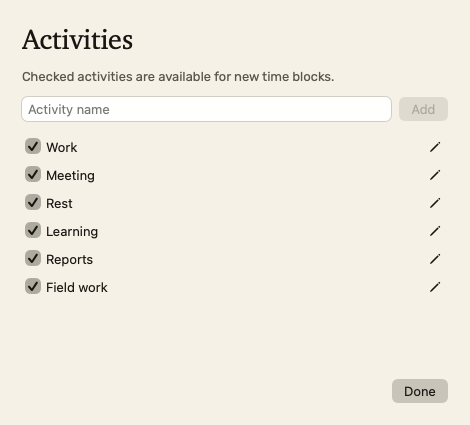
Tailor the activity list to your work. Add your own categories alongside the built-in ones, or hide activities you do not use.
Choose your language and two distinct sounds
Choose from 42 interface languages. Changing the language updates the menus and controls while keeping the same schedule and time blocks.
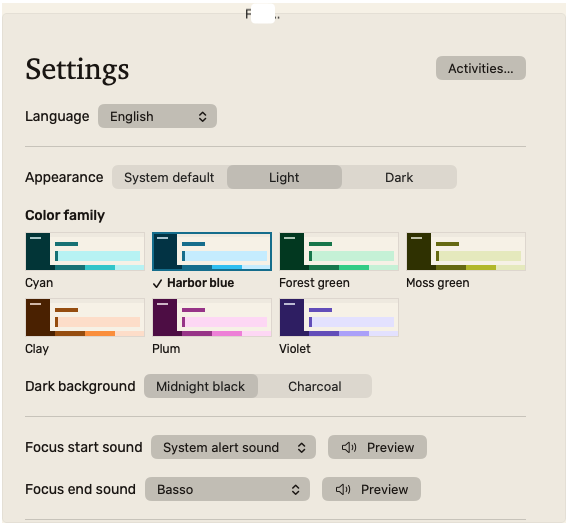
Pick separate system sounds for the beginning and end of focus. Preview each in Settings, or silence either one independently.
The same schedule in a different palette
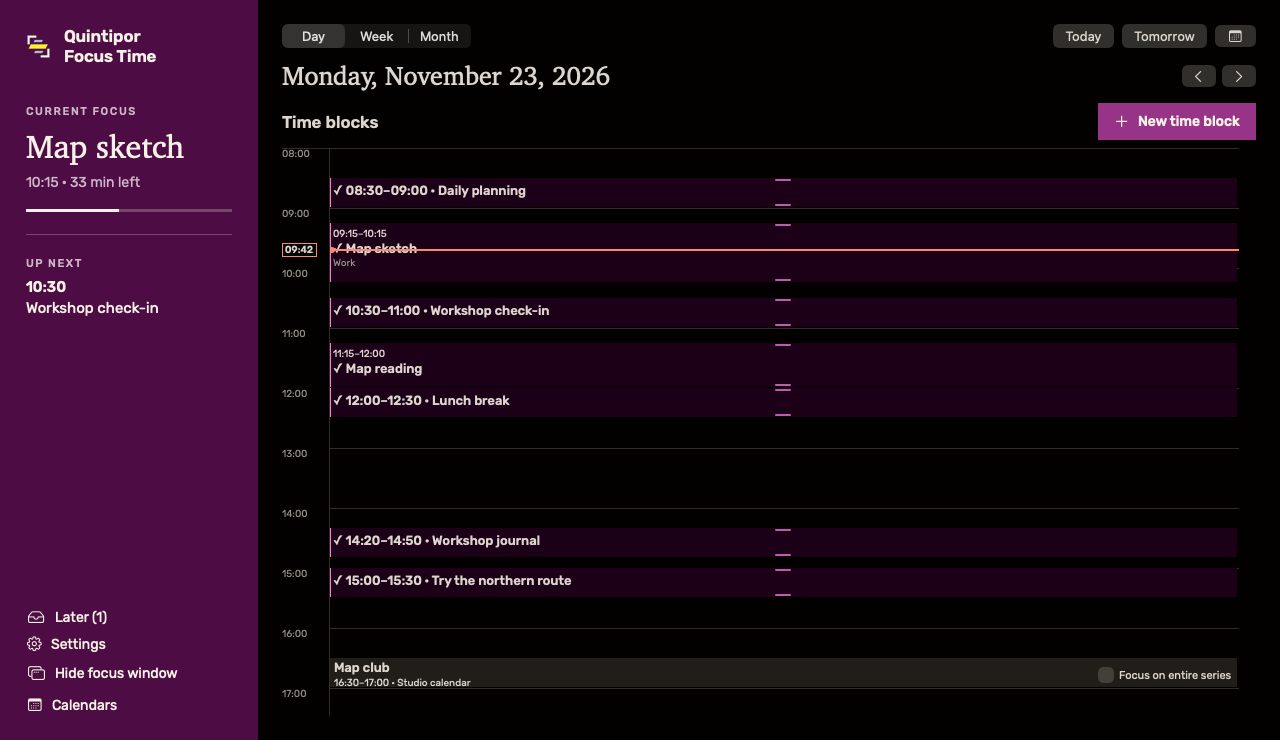
Choose from seven colour families and preview their swatches in Settings. Follow the system appearance or set a light or dark look just for the app.
Both screenshots show the same sample day: Forest on a light background and Plum on a dark background.